
Documentation
Getting Started
For Organizers
For Coaches / Clubs
For Athletes
YouTube Live
Connect the tournament broadcast to YouTube so that spectators can watch the bouts online.
budo.asia offers two ways to stream:
Video guide
- PWA from a phone — the simplest way. The phone films the tatami, the overlay is applied automatically and the video goes out to YouTube. No extra equipment is needed.
- OBS with a fixed camera — the professional solution for a high-quality picture.
Way 1 — PWA from a phone (recommended)
The phone becomes the camera and the encoder at the same time. The system applies the overlay (score, timer, athlete names) directly onto the video and sends the stream to YouTube.
Step 1. Set up the broadcast on YouTube
- Open YouTube Studio → Live streaming and create a new stream.
- Copy the Stream Key.
Step 2. Enter the stream key in the settings
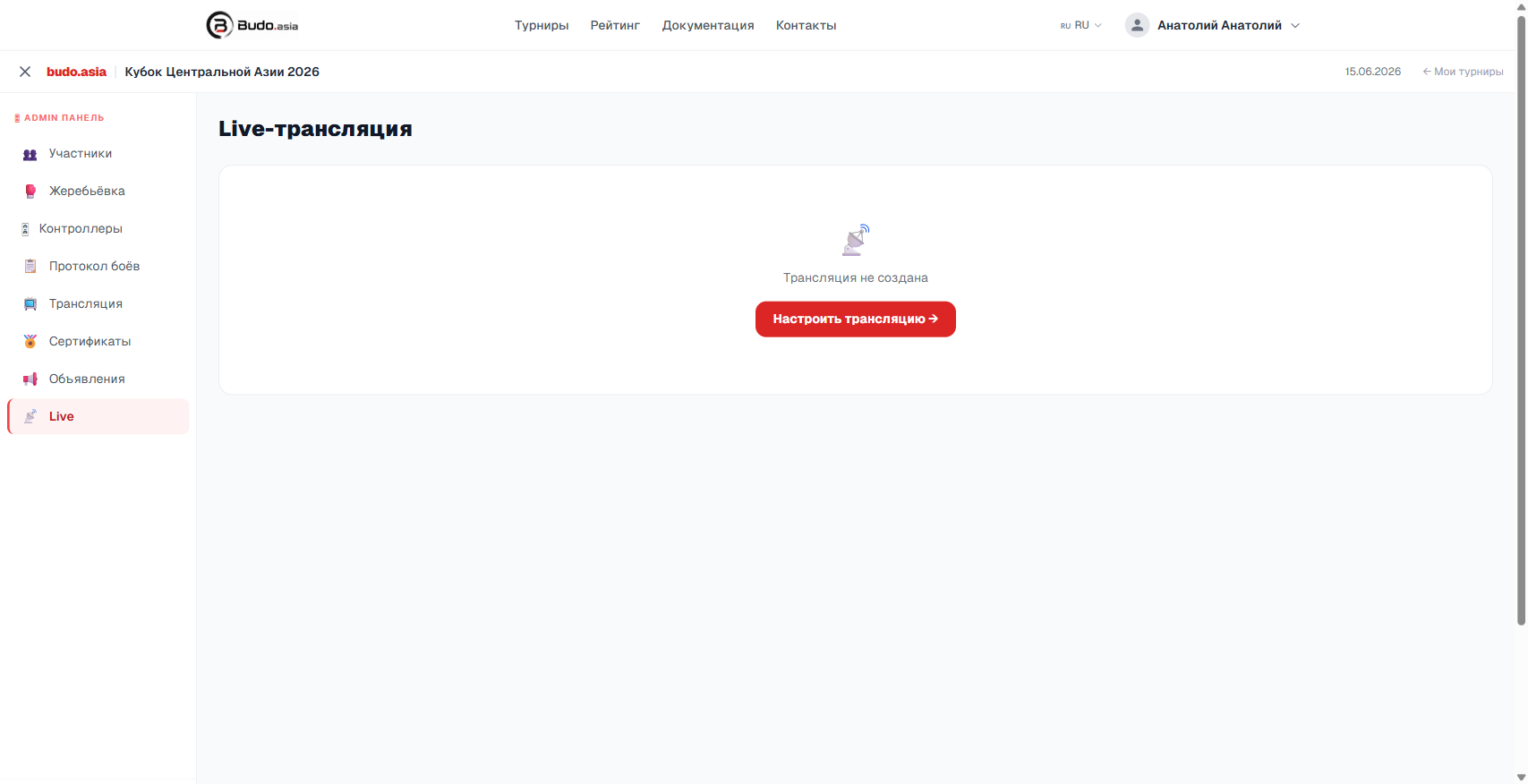
- In the tournament admin panel go to Live.
- On the 🔴 PWA tab find the tatami you need and paste the stream key into the field.
Step 3. Open the PWA on the phone
- Click Show QR code next to the tatami you need.
- Scan the QR code with the phone that will film the tatami.
- The phone opens the broadcast page — tap Start broadcast.
- Allow access to the camera and the microphone on the first launch.
- Use Chrome on Android or Safari on iPhone.
- Keep the phone plugged into a charger — streaming drains the battery fast.
- A Wi-Fi connection or a stable 4G/5G signal is recommended.
- The overlay (score, timer, names) updates automatically from the tatami data.
Way 2 — OBS with a fixed camera
Use OBS Studio for a professional broadcast from a fixed camera. The budo.asia OBS overlay is added as a Browser Source.
How to set it up
In Admin panel → Live click Set up broadcast. The system asks you to sign in with the Google account of your YouTube channel. After that you can start and stop the broadcast straight from the tournament control panel.
On the 🖥 OBS tab copy the Browser Source link for each tatami and add it to OBS as a “Browser” source.
Requirements
- The YouTube channel must be verified and allowed to run live streams
- The venue needs a stable internet connection
- For the PWA — a phone with Chrome (Android) or Safari (iOS) and camera/microphone enabled