
Documentation
Getting Started
For Organizers
For judges
For Coaches / Clubs
For Athletes
Kata controller
The kata controller is the judging panel's screen on a kata tatami. It opens from the same link as the fight controller, on a laptop or tablet, with no registration or sign-in. The called performance, the judges' scores, the result and the places go straight to the hall scoreboard, the live stream and the tournament record.
How to open the controller
- The organizer gives you the tatami link or QR code — see Judge access. If the tatami has kata, the link opens the kata controller by itself; once kumite is put on it, it opens the fight controller.
- Under the header are the kata categories of this tatami. Each shows its type (POINTS or BRACKET) and how many are already scored; a finished one has a tick. The controller opens the first unfinished one by itself; tap another to switch.
- Choose the controller language from the list in the top right corner; this browser remembers it.
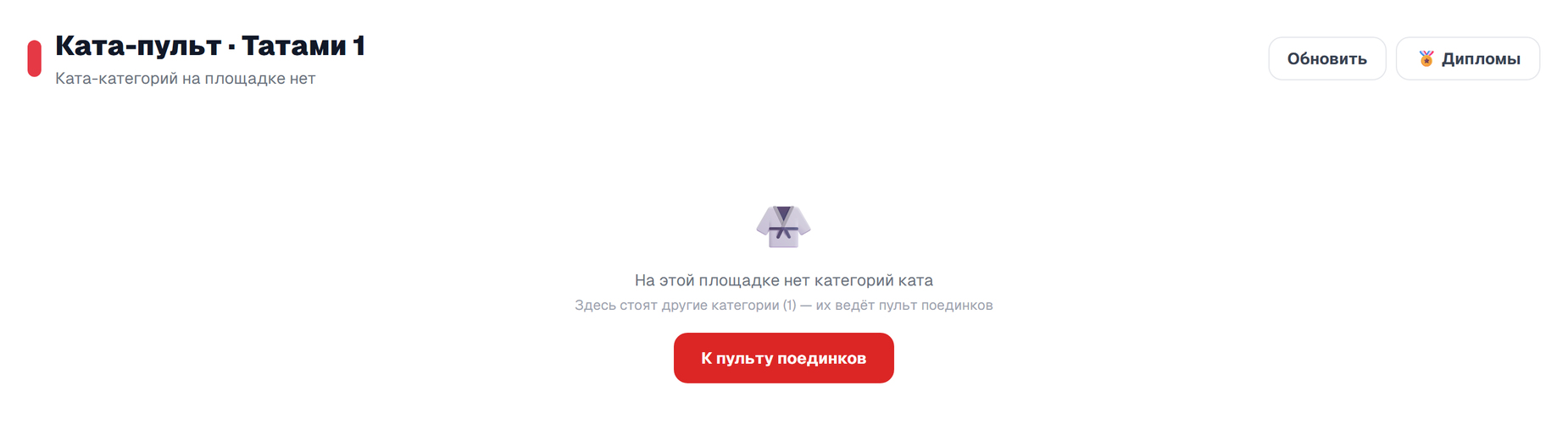
The tatami also has a separate kata link, which shows only kata. If the kata categories have already been taken off the tatami, it says There are no kata categories on this tatami and offers the To the fight controller button for the same tatami.
Kata on points: calling and scoring
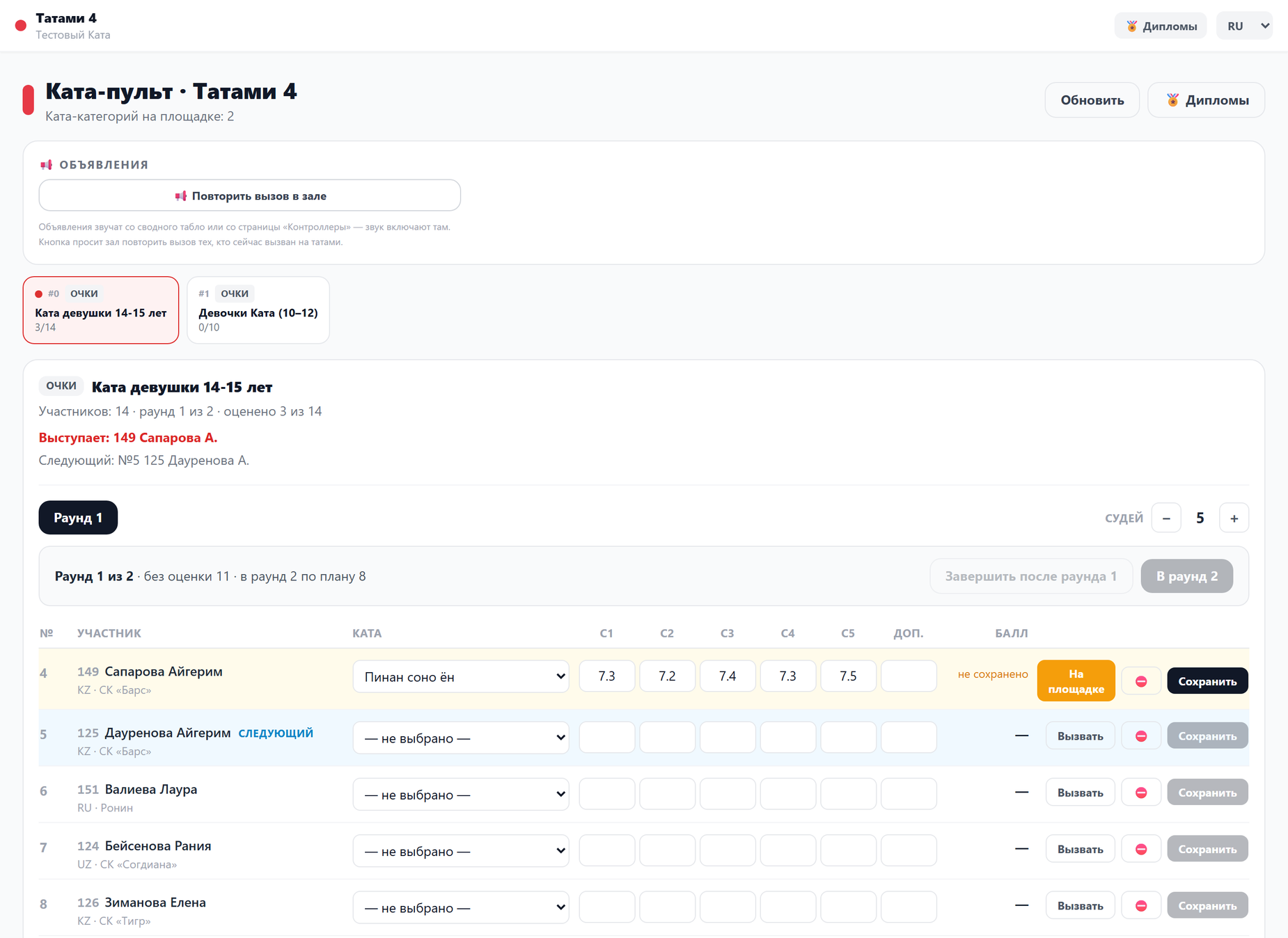
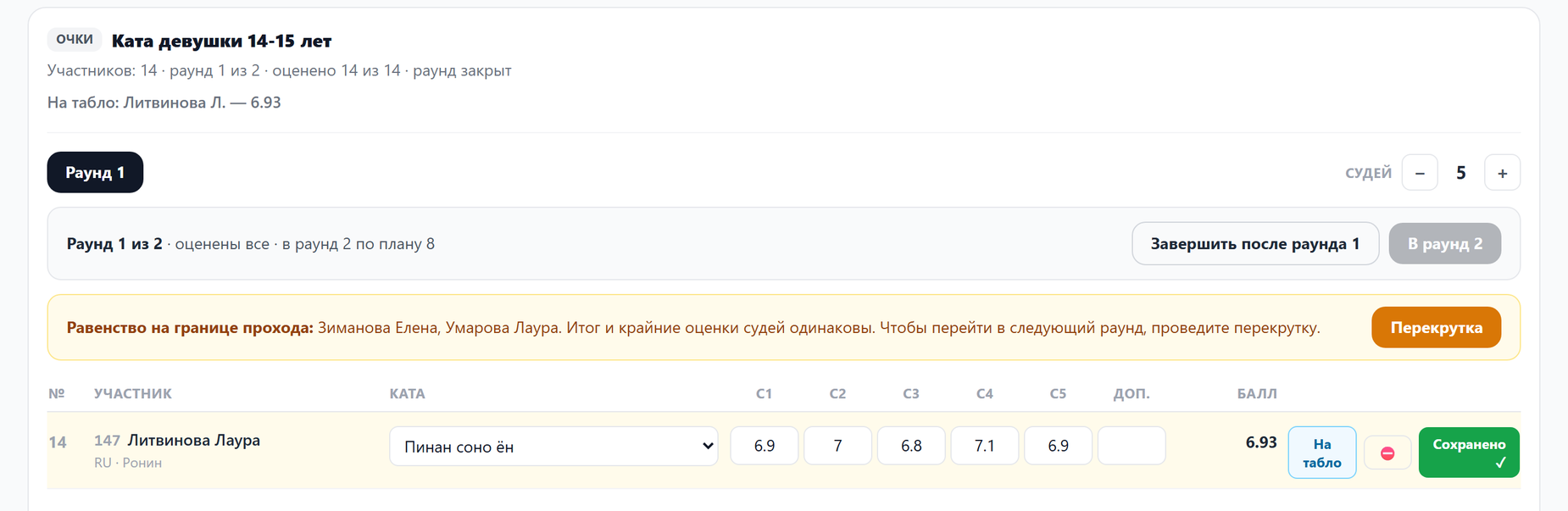
Performances are listed in draw order: number in the round, start number, name, country and club. The Call button puts the competitor on the hall scoreboard, and if hall announcements are on, they are called by voice. For the called competitor the button is replaced by On the tatami, and the line above the list shows Performing and Next.
- In the Kata column choose the kata performed from the list.
- Enter the judges' scores in the J1…J5 fields and an extra point, if any, in Extra. The number of fields is set by Judges − / + at the top right of the list.
- Move between fields with the ← and → arrows; Enter saves the row. You can type a comma instead of a dot — the controller replaces it.
- An empty field means the judge has not scored; it is not a zero. Until the row is saved, not saved is shown next to it.
Score and scoreboard
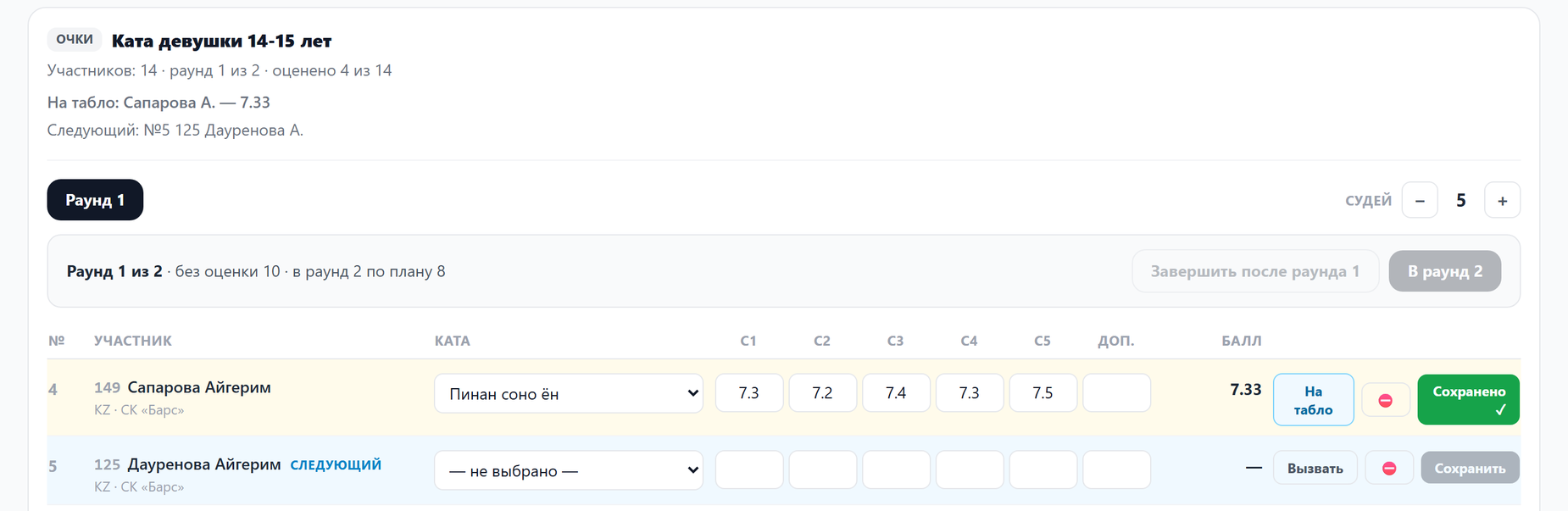
After Save the button turns into a green Saved ✓, and On the board appears next to it: the performance score is shown in the hall and stays there until the next competitor is called. The server calculates the score by the category settings — usually the extreme marks are dropped and the rest are averaged.
- Scored performances leave the list on the tatami link; at the bottom the controller says how many are hidden. The organizer can correct such a score in the controller in their account.
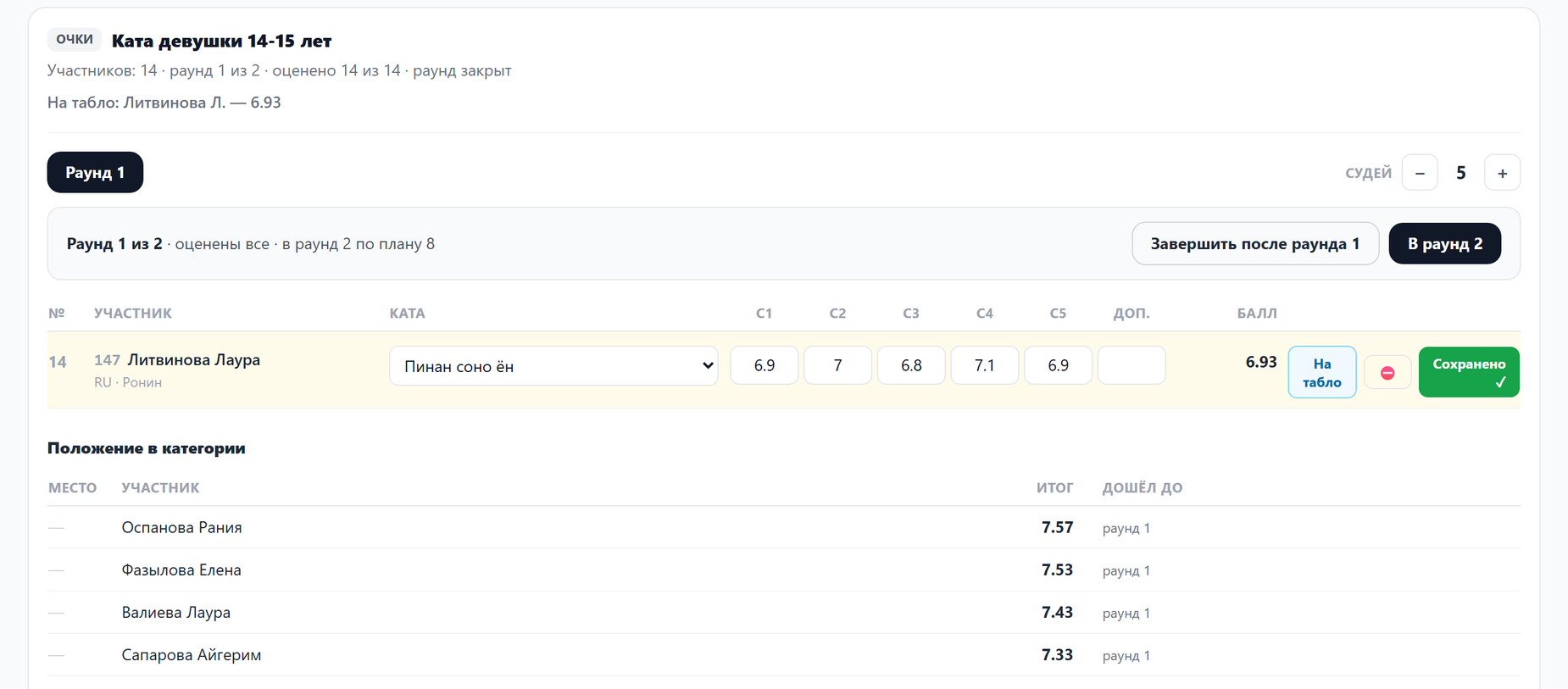
- Below the list is Standings in the category: each competitor's total and the round they reached.
Rounds and places
Above the list is the round line: Round 1 of 2, how many performances are still unscored and how many competitors go through by the plan.
- When the round is fully scored, To round 2 becomes active. The controller asks for confirmation and makes up the next round itself; the scores of the previous round are then frozen.
- Roll back round N cancels the move: the performances of that round are deleted, and the previous round's scores can be edited again.
- Finish after round N ends the category early if the panel held fewer rounds than were set.
- Places are set automatically once the last round is scored and are recalculated when a score is edited.
Equal score
An equal total is first separated by the judges' extreme marks. If those match as well, a warning appears above the list:
- Tie at the qualifying line — you cannot move to the next round until a tiebreak separates the tied competitors.
- Share the place — without a tiebreak the place will be shared.
The Tiebreak button adds repeat performances of the tied competitors to the round — they are marked tiebreak. Call and score them as usual; the main round score does not change. Cancel tiebreak removes the unscored tiebreak performances.
Kata by bracket
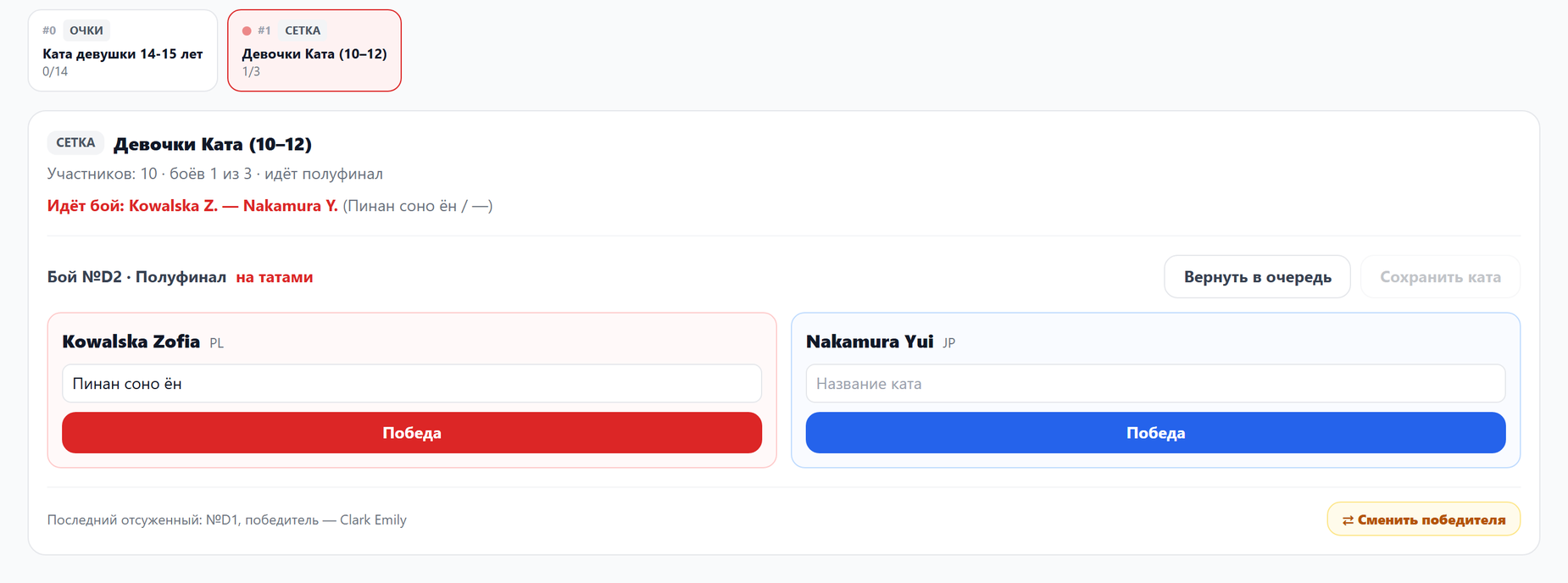
A category marked BRACKET runs as bouts: two competitors perform against each other, and the winner goes through. Under the category header you see how many bouts are judged and which one is in progress.
- Call puts the bout on the hall scoreboard; Return to the queue cancels the call.
- Under each side enter the kata name and press Save kata.
- Win under a side records the winner — the controller asks for confirmation.
- Below are Next in the queue and the last judged bout. Change winner warns that bouts of the following rounds with the former winner will be cancelled.
Withdrawing a competitor
If a doctor withdraws a competitor or they are disqualified, press ⛔ in their row and choose the reason: Medical or Disqualification. The controller asks for confirmation.
- The competitor no longer performs in this category. With a medical withdrawal, scores already given stay in the results; disqualification leaves no place.
- The controller withdraws a competitor only from this category — the organizer withdraws their other entries.
- Withdrawn by mistake — the ↩ button in the same row brings the competitor back into the competition.
Repeating the call
📢 Repeat the call in the hall — the announcement plays once more. It sounds in the hall — on the summary scoreboard or on the Controllers page; the controller itself stays silent.
Diplomas
The 🏅 Diplomas button opens the medallists of this tatami's categories and the mark for filled-in diplomas. Details are in Diplomas.
If the screen fails
On an error, instead of a white screen you see the Judge screen failure window. Scores and results are stored on the server, so nothing is lost: press Continue, and if that does not help, Reload. Show the error text from the window to the organizer.